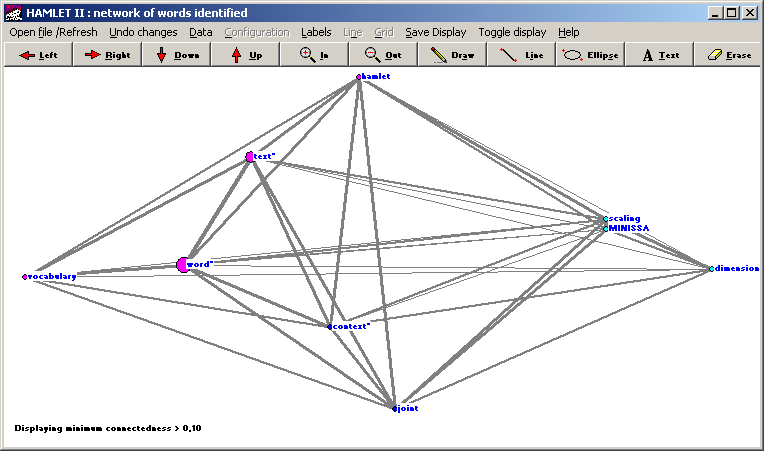
Use the keys to rotate and zoom in and out on the display.
Click on the menu item Toggle display to select the equivalent MDS output display, with reference axes in two or three dimensions.
Click on the display using the left mouse button to toggle the display through three degrees of connectedness (successive line thicknesses represent the values : 0.0 < c < 0.33; 0.33 < c < 0.66; and 0.66 < c <= 1.0).
Click on points in the display to highlight their labels; click on Refresh to cancel the highlights.
With the right mouse button depressed, drag the pointer to a new location and release the mouse button again to move the display around inside the window, to be able to concentrate on particular parts of it.
Some basic drawing functions are toggled on and off by clicking on their respective buttons on the toolbar. When they are operative, a hand pointer cursor appears, which is changed back to the default arrow cursor when the facility is toggled off again. Toggling the Line button draws straight lines from a point where a mouse button is depressed to a point where it is lifted. Toggling the Ellipse button draws an ellipse within a notional rectangle outlined by using the mouse in a similar manner. The Line | Colour and Line | Thickness menu items allow you to set the colour and thickness in pixels of the lines drawn. Clicking on the Text button causes a box to appear to enter text. On closing this box, move the mouse to the position required and press a mouse button to add the text to the image displayed. Finally, toggling Erase allows you to erase the display as required. Clicking on Undo (Ctrl+Z) will undo the last changes made. Clicking on Refresh will clear all lines and annotations added and return the image to its original form when first displayed. The image as amended must be saved immediately on completion of drawing and erasing, as any additions will be lost when the display is reoriented.
Click on Save Display to save the current display in a file. Alternatively, you may use Alt+PrtScr to save the current display to the clipboard for inclusion in other files.